A first read-out usually goes wrong not on the engine but on small things: a flat phone, an adapter that keeps dropping the connection, or not knowing where to begin. We take you through a first BMW engine read-out in SC Diag in the order we do it at a car, including what you will see on screen and what to do when the car does not answer.
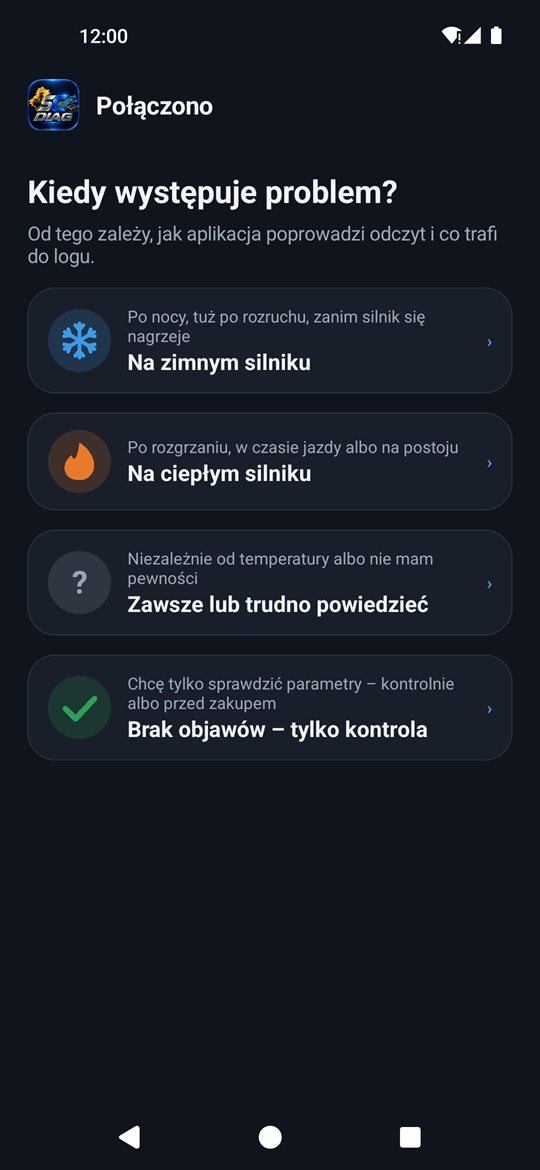
The first read-out screen in SC Diag: the app asks when the problem occurs (demonstration mode, simulated data).
In short: install SC Diag and look around demonstration mode, then connect an adapter that suits the car’s age, start the engine when the app asks you to, and say when the problem occurs: cold, warm, always, or “just a check”. The app guides the read-out and shows live values. You save the log or send it for analysis only if you decide to.
What to have to hand before you get in the car
You need a phone running Android 8.0 or later, or a laptop with Windows 10 or 11 (64-bit), and an interface that suits the car’s age. On the newer F and G series that usually means an ENET cable, on the older E series a K+DCAN cable works best, and for plain read-outs from a phone an ELM327 adapter over Bluetooth or Wi-Fi is enough. The cheapest clones can be unstable, and they are the usual culprit behind “it won’t connect”. Support for workshop interfaces such as ICOM and VXDIAG is still in testing and has not been confirmed on a vehicle, so do not treat it as a proven route. We cover the choice in the article on adapters and cables.
The second item is power. On a short read-out with the engine running the alternator charges the battery, but with ignition alone the voltage drops during the session. Check that the battery is in decent shape, and for a longer session start the engine or connect a charger. Voltage is shown on the dashboard the whole time, so you will notice a drop at once. A read-out changes nothing in the control unit, but unstable power can also be a reason for the connection to drop.
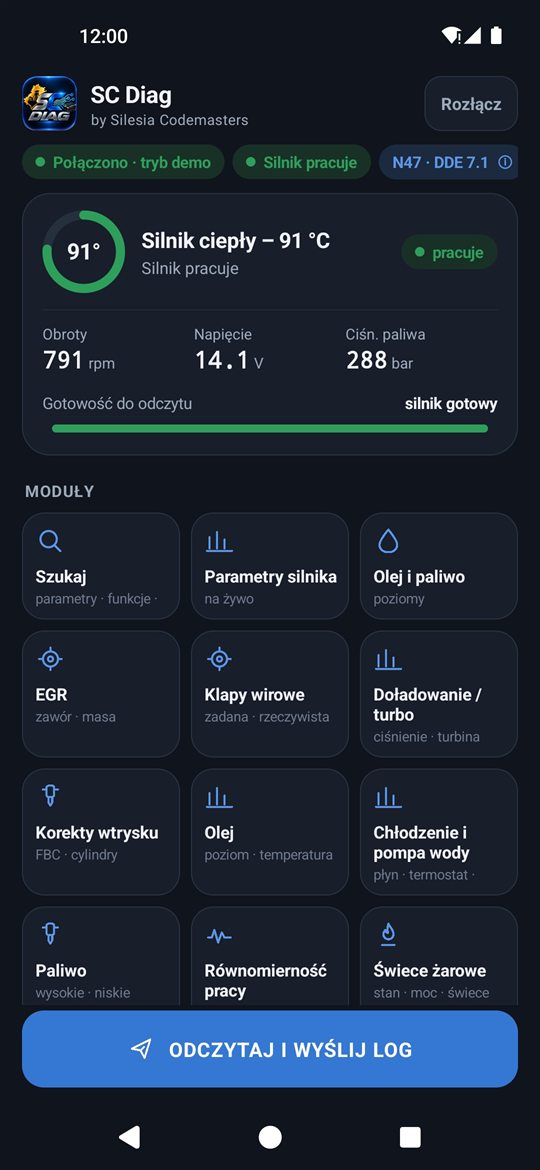
The dashboard once the control unit is recognised, with voltage visible all the time (demonstration mode, simulated data).
Demonstration mode first, without the car
After installation demo mode works straight away, without a car and without a licence, on simulated data. You pick an engine from the list and look at the screens a real read-out would show. It is the cheapest way to learn where to find faults, rough run or logs before you stand at the car. You download the Android app from the app page as an APK file (outside Google Play, so Android will ask for permission to install from that source), and on Windows there is an MSI installer.
There is also a one-off read-out. When you order a diagnosis from Silesia Codemasters, access to the app for one read-out is free of charge, and a read-out for analysis can be done even without a licence key. The live view of values needs a licence.
From plugging in the adapter to the dashboard
- Plug the adapter into the OBD socket and switch the ignition on.
- Connect the app to the adapter (Bluetooth, Wi-Fi or cable, depending on the interface).
- Wait until the app recognises the engine control unit. It chooses the set of values by itself.
- Start the engine when the app asks you to. During a full read-out it checks that the engine is running and reminds you not to touch the accelerator.
- Pick the symptom and follow the prompts on screen.
On the dashboard you will see engine temperature, engine speed, voltage, fuel pressure and a read-out readiness bar. Below are tiles for the control unit’s screens, and at the bottom a large button for the full read-out and sending the log.
The symptom question that changes the whole read-out
The app asks when the problem occurs. There are four answers: on a cold engine (after a night, just after starting), on a warm engine (once warmed up, while driving or standing), always or hard to say, and no symptoms, just a check. The answer decides how the app guides the read-out and what goes into the log.
For a cold-engine symptom, do not start the engine beforehand “just for a moment”, because then the read-out loses its point. The description of the Windows program says that for a cold read-out it first measures the cold sensors with the engine off and then from start-up, and that for a warm one it starts once the set temperature (90 °C) is reached.
What you will see, and what a read-out will not tell you
You will see engine control unit faults with descriptions and a freeze frame, live values, on petrol engines a rough run chart, and on diesels screens for EGR, swirl flaps, boost, DPF and AdBlue. Always within what the given control unit supplies. The N43 and N53 are covered most fully; for other engines the scope depends on the data the control unit supplies, and values it does not supply simply do not appear.
A read-out indicates a probable direction but cannot name the faulty part on its own. Whether the pump, an injector or a sensor is to blame usually takes a comparison of many values, and sometimes measurements on the car. If the read-out is to go for analysis, you save an encrypted log and decide for yourself whether to send it. We describe the details in the guide on how to record an engine log and send it for analysis. Your read-out history stays on your device and you can delete it.
When the app will not connect to the car
Start with the simplest things: is the ignition on and is the adapter lit. With an ELM327, try a different adapter, because clones vary in quality. With a K+DCAN cable the usual culprit is the COM port or the cable driver. On the F and G series with an ENET cable, look at the network card settings. Also check that the battery voltage has not dropped. If that does not help, write to us and we will help.
Frequently asked questions
No. Demonstration mode works without a car and without a licence, on simulated data. You can pick an engine and look at the screens before ordering a licence.
It is access to the app for one read-out, which you get free of charge when you order a diagnosis from Silesia Codemasters. We charge for the diagnosis itself according to the price list.
A read-out, live values and sending a log change nothing in the control unit. Only procedures from the Service tab (2-year licence), which you start yourself after a warning, and clearing faults after confirmation change it.
We do not promise that. Described are ELM327 adapters and K+DCAN and ENET cables, while workshop interfaces (ICOM, VXDIAG, J2534) are in testing, without confirmation on a vehicle. Cheap ELM327 clones can be unstable.
A 30-day licence is €9.99, an annual one €29.99, and the 2-year licence with the Service tab €69.99. Android and Windows are separate licences. A one-off read-out when you order a diagnosis is free of charge.
Start with demonstration mode
Install SC Diag, look at the screens on simulated data, and when you are ready choose a licence or order a diagnosis with a free read-out.
See SC Diag